

Is your Windows 11 machine getting slow and unresponsive? Maybe the Start menu is taking a while to pop open, your right-click menus are taking a bit longer than usual, or your PC may take too long to shut down. Surprisingly, some of these speed issues are not due to weaker hardware. More often than not, they are due to inherent animations, delay processes, and behaviors that Windows implements for a better graphical interface and compatibility. That is where Registry tweaks come in handy. The Windows Registry is the master database storing operating system information.
Showing posts with label Windows. Show all posts
Showing posts with label Windows. Show all posts
14 Windows Commands That Can Fix Most PC Problems
On

There are different types of problems every Windows user has to deal with. These can include booting-related issues, disk corruption, slow computer performance, or network-related errors. An average Windows user isn't tech-savvy and often struggles to fix these issues. Most of these problems can be fixed easily without the need for a computer technician. In this tutorial, we'll learn some of the most useful commands to fix common Windows problems. We'll be using the command prompt interface. Even if you've never used a command line interface (CLI) before, you'll be able to follow this guide.
How to Fix 100% Disk Usage Issue in Windows 10
On

Have you ever experienced sudden sluggishness while working on your Windows 10 PC? Applications are almost freezing, and you just can't do any work. This often happens with old computers and laptops. Even the latest PCs can sometimes face this problem. Nine out of ten times, this sluggishness and freezing happen because of continous 100% disk usage. Culprits can be unnecessary background services or a poorly optimized computer. Today, we'll learn how to address this issue and prevent frequent 100% disk usage. You can apply these methods to other versions of Windows as well. Let's get started!
How to Use Hidden File Explorer Features in Windows 10
On

Generally, we use the Windows File Explorer as an application to browse directories and files. But, it's more than that! There are several lesser-known features that enable you to save time as well as increase your productivity. In this tutorial, we'll learn about these uncommon or somewhat hidden features to get the most out of the Windows file manager. We'll learn each of these features with a practical example you can easily apply and test on your Windows machine. Almost all of these features are available in Windows 10 and 11. A good number of them also work in older versions of Windows. Let's learn about it.
How to Remove Bloatware on Windows Using PowerShell Commands
On

Most operating systems come with some preinstalled software that you never use. These unwanted applications are often difficult to remove or uninstall through the regular interface. In this guide, we'll learn about removing bloatware applications from Windows. We'll use PowerShell commands for the same. It entirely depends on your personal preference what you call bloatware. So feel free to curate your personalized list of bloatware applications you want to remove from your Windows PC. The method explained works well on Windows 10 and 11. So, let's get started and remove bloat from our PC!
How to Disable Telemetry in Windows 10 – Step-by-Step Guide
On

Nowadays, most companies try to integrate telemetry in different forms into their software. This data collection process is done to improve the software. Windows can also collect such data. However, if you prefer not to share your usage data on Windows 10, you can disable it. In this tutorial, we'll learn to disable telemetry on Windows 10 in different ways. In the end, a complete script is also provided to help you automate the entire process. Although there is no foolproof way to block data collection completely, you can take steps to reduce it to the minimum. You can apply this process on Windows 11 as well.
How to Set Up and Use Windows Sandbox for Safe App Testing
On

If you want to test applications and software in general without affecting your current Windows installation, Windows Sandbox is one of the best options. It gives you an isolated copy of the Windows instance that runs separately from your actual Windows installation. This way, you can easily test applications without worrying about data corruption or malicious software. In this step-by-step tutorial, we'll learn to configure and use Windows Sandbox for testing applications safely and securely. Developers, programmers, and system administrators will find this testing tool, extremely useful.
How to Create a Windows Recovery USB Through an Android Phone
On

System crashes can happen anytime, anywhere. Stay prepared with a reliable recovery solution. If your Windows computer is unbootable and you only have your Android phone, Ventoy's got you covered. This innovative tool lets you create a Windows recovery USB directly from your smartphone. It's easy to use and makes a recovery USB from almost any bootable ISO file. Follow our simple step-by-step guide to safeguard your data and ensure seamless recovery. You can use this tool to create a recovery USB for Linux too. This solution will only work if your Windows system is corrupt and there's no hardware failure.
How to Create and Password Protect Virtual Hard Drives in Windows
On

Although there are several ways to hide your sensitive files on a computer, the one described here is uncommon among general users. Instead of just password-protecting a general folder, we'll create a virtual hard drive and then password-protect it. It's like an additional layer of security for sensitive files. You'll need Windows 10 Professional and above for this method to work. Virtual hard drives are supported by all modern operating systems. Generally, virtual disks are used for running virtual machines and for testing purposes—but—we'll use it for creating a secure storage space.
How to Use Windows Task Manager Like a Pro
On

To an average user, the importance of Windows Task Manager is not that high. But, this powerful system application can help you perform several critical operations. Generally, it is used to visualize how the system resources are being consumed. In this tutorial, we'll learn to exploit the power of this application fully. It's not just about inspecting resource consumption alone. You can perform several advanced task management operations. The information given below applies to both Windows 10 and 11 task managers. Much of the information applies to the Windows 7 task manager too.
Customizing the Windows 10 Taskbar: A Comprehensive Guide
On

Windows taskbar is one of the most flexible interface elements that can be customized—easily. The default taskbar state is good enough for an average user, but, we often tweak and customize it to meet our needs. It's not just the appearance that can be customized, one can add sections, apps, and widgets to the taskbar too. The taskbar's default behavior related to events and states can also be customized. The following guide will help you customize the Windows 10 taskbar. All the major taskbar customization options are covered in this tutorial. You can learn these customizations in any order.
How to Automate Tasks in Windows With PowerShell Scripts
On

Automation is one of the benefits when using computing systems for different types of tasks. On a Linux system—in general—shell scripts are used to automate critical administration tasks. Is there something similar available on a Windows computer? Well, PowerShell scripts can be used to automate a wide array of jobs. It's like a Swiss army knife when it comes to automating simple to complex tasks on a Windows machine. Initially, learning it can take some time, but, when mastered, you can control your Windows computer through these scripts. Let's see how to use PowerShell scripts for task automation.
How to Use Custom Themes and Icons in Windows
On

The default Windows theme is simple and is generally preferred by an average user. But, what if you want to use a custom theme? Fortunately, the process to create a custom Windows theme is easy and doesn't require you to be a geek. We'll look into the step-by-step method to create such a theme. We'll also see how we can apply custom icons to application shortcuts. This too is not that hard. The process for customizing both the themes and icons is more or less similar on Windows 10 and 11. Let's see how we can create a unique desktop experience on Windows through custom themes and icons.
A Step-by-Step Guide to Installing Custom Fonts in Windows
On
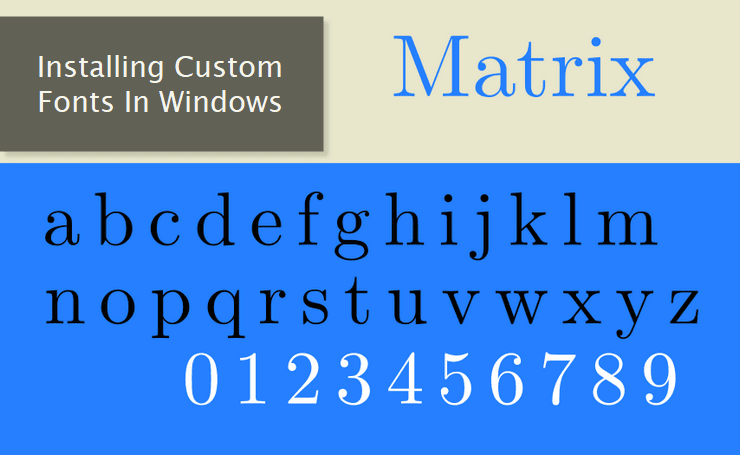
Whether it's a print or a digital world, fonts are an important part when it comes to presenting content in front of viewers or readers. Windows OS comes with a set of default fonts which is more than enough for an average user. However, graphic designers, web developers, and writers often need custom fonts in their applications. In this guide, we'll learn about installing these custom fonts on a Windows PC. Broadly, fonts are either free or paid. The installation of both types is the same. Although installing and using custom fonts is easy, there are some cons associated with it. We'll discuss that too in this post.
Understanding User Account Control (UAC) in Windows
On

Windows 10, the pinnacle of Microsoft's operating systems, unveiled a remarkable security advancement referred to as User Account Control (UAC). This cutting-edge system stands as an indispensable guardian, shielding your computer against potential threats from malicious software and unsanctioned alterations to the system. Within the confines of this feature, we shall delve into the essence, advantages, and intricate workings of UAC, enabling you to harness the full potential of this formidable security attribute. Let's get started and learn about using UAC on our Windows machines. Here we go!
How to Manage Startup Programs in Windows 10
On

Whenever a Windows machine boots up, several applications are started automatically either in the background or foreground to help you get started with your work. Some of these applications are absolutely essential ones while others are optional and can be removed or disabled as per your needs. But, managing these startup applications is not that easy. The following tutorial will teach you how to easily manage these startup programs. We'll learn how to add, delete, and temporarily disable and enable these programs. So, let's get started and see how we can manage these applications.
How to Create a Custom Power Plan in Windows 10
On

Though most Windows versions offer custom power plans, we're more focused on Windows 10 in this guide. Power plans are a way to instruct your Windows PC how it should behave or work when either on electric power or on battery power. Although the default power plan is generally good enough for most users, you may feel the need to customize it to suit your needs or requirements. And, that's exactly what we're going to learn in this tutorial. You can either customize an existing power plan or can create a new one from scratch. We'll check out both, but our focus will be the latter approach. Let's get started.
How to Add App Shortcuts to Windows Desktop Context Menu
On
Windows context menus constantly change depending on where you're using them. On a desktop, the context menu has a standard format with subtle differences across different versions of Windows. And, within applications, we may have an entirely different and highly customized context menu. Today, we're going to learn how we can add custom application shortcuts to the standard desktop context menu we activate through a right-click of the mouse. It's a simple and easy-to-follow process that enables you to add just about any application provided you know its exact folder location on the hard disk drive.
Continue Reading →
 Windows context menus constantly change depending on where you're using them. On a desktop, the context menu has a standard format with subtle differences across different versions of Windows. And, within applications, we may have an entirely different and highly customized context menu. Today, we're going to learn how we can
 How to See and Delete Diagnostic Data Collected by Windows 10
On
Privacy is one of the biggest concerns among netizens. Nowadays, almost every popular application implements some type of data collection (a.k.a telemetry) system in the name of improving and enhancing the software. But, we as general users either are not aware of this functionality or just don't know what data is being collected. If you're a Windows 10 user, you must know that a ton of diagnostic data is generated and passed on to Microsoft for so-called improving the operating system. If you're not comfortable with it and want to stop it altogether, there's no easy way to do it. The operating system does provide some options to limit this functionality but there's nothing to stop it completely. This guide is all about viewing this diagnostic data and selectively deleting it. The application to do all this is provided by Microsoft but most of us are not aware of it. If you find this a bit technical, you may choose to completely omit it. So, let's get started and manage the diagnostic data collected by Windows 10.
Continue Reading →
 Privacy is one of the biggest concerns among netizens. Nowadays, almost every popular application implements some type of data collection (a.k.a telemetry) system in the name of improving and enhancing the software. But, we as general users either are not aware of this functionality or just don't know what data is being collected. If you're a Windows 10 user, you must know that a ton of diagnostic data is generated and passed on to Microsoft for so-called improving the operating system. If you're not comfortable with it and want to stop it altogether, there's no easy way to do it. The operating system
 How to Use Multiple Desktops in Windows 10
On
Though most of us are happy with the primary desktop we work on, some of us need multiple instances of the same for different reasons. In the latter case, a user prefers to divide his PC sessions based on different categories, viz., work, entertainment, confidential, and more. And, that's where multiple desktops come into play. Fortunately, most modern desktop operating systems support this feature. And, in this article, we're going to focus on Windows 10 multiple desktop workflow. Those who're unfamiliar with this concept may find it a bit weird in the beginning. But, once you get hold of it, it's one of the best tools in your arsenal to keep your PC sessions segregated based on your interests. I often use it when working on my desktop though I prefer to use a single one while using a laptop and that too while on the go. Multiple desktops work on each version of Windows 10 and can be activated quite easily. Let's get started and see how to use and get the most out of multiple desktops on a Windows 10 device.
Continue Reading →
 Though most of us are happy with the primary desktop we work on, some of us need multiple instances of the same for different reasons. In the latter case, a user prefers to divide his PC sessions based on different categories, viz., work, entertainment, confidential, and more. And, that's where multiple desktops come into play. Fortunately, most